If you want to use your Raspberry Pi for gaming you certainly want to attach some sort of controller(s) to it. Since the Raspberry comes with two USB ports one way would be to simply attach any sort of USB gamepad or joystick via these ports to it. Besides the configuration this approach has the disadvantages that one or both USB ports become occupied and, what I think is even more disturbing, that an active USB hub might become necessary to provide enough energy to the controller(s). Also, if you want to get the real retro feeling you certainly want to use original controllers. The GPIO pins of the Raspberry allow the communication with all sorts of hardware and attaching, for example, SNES controllers can be done in quite a few steps. A user-space program that polls the controller(s) in the background was presented here. In the following I am presenting a dedicated GPIO adapter for the Raspberry Pi that allows an easy and safe connection of up to two NES or SNES controllers.
The RetroPie GPIO adapter
Based on the experiences with a previously presented adapter PCB I designed a new SNES adapter PCB specifically for the use with the Raspberry Pi.
Hardware
This GPIO adapter aims at
- an easy and practical installation
- as well as providing circuitry protection
- and a button that can be used arbitrarily by software.
An easy and practical installation of the adapter board is achieved by using a 2×13 pins female header for a connection to the GPIO pins and 2×5 pins male header for the connection to, for example, (S)NES controller sockets. The only tinkering needed for a connection to (S)NES connectors is the soldering of the ribbon cable to the connectors. The size of the adapter PCB is only 0.91 in x 1.32 in (23 mm x 33.5 mm). This size does not increase the needed overall volume of the Pi much and allows the usage of most existing cases.
For a practical application the adapter is provided with a circuitry protection as it was proposed in a thread of the official Raspberry Pi forum. To handle over currents a resettable fuse is put on the supply rail. Possible transients are taken care for by a buffer IC 74HC125. As stated by RPi wiki site about circuitry protection
these ICs provide an in-line connection which is buffered via an internal transistor switch to isolate the input from the output.
Four GPIO pins, which would correspond to two data lines, the clock, and the latch in case of (S)NES controllers, are buffered by the adapter.
A momentary on push button is also part of the adapter board. The button is also connected to one of the GPIO pins and, thus, the status of the button can be polled with any suitable software. This allows, for example, to add a reset/back button that is needed with a keyboard-less setup and controllers with no redundant buttons like the SNES or NES controllers.
Pin Out
GPIO pin out: The pin out of the board to the female 2×13 pins header is matched to the gamecon GPIO driver that can also be installed and configured from within the RetroPie Setup Script. The exact pin out together with the according pins on the SNES connector are listed in the following and shown in the diagram (for revision 1 of the Raspberry Board):
- VCC (3.3V): pin 1
- Ground: pin 6
- Clock: pin 19 (out)
- Button: pin 11 (in)
- Latch: pin 23 (out)
- Data 1: pin 7 (in)
- Data 2: pin 5 (in)
Connectors pin out for (S)NES connectors: The (S)NES connectors are soldered to a 10-wire ribbon cable that has a 2×5 pins female ribbon crimp connector at the other end. The pin out together with the according pins on the SNES connector are shown in the diagram:
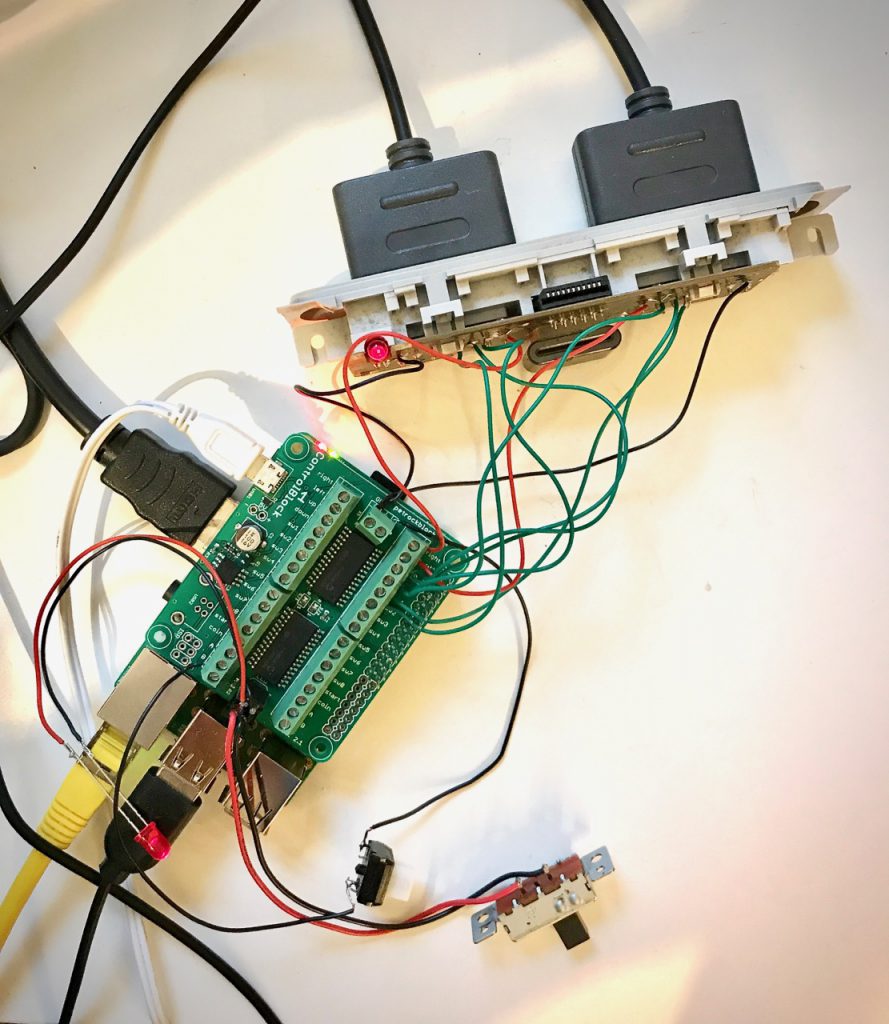
Here is an image of two SNES connectors soldered to the ten-wire ribbon cable and connected to the adapter board:
For those of you that are interested in the components details, here are the manufacturer part numbers:
- Tri-state buffer: SGS-Thompson Microelectronics M74HC125M1R
- PTC resettable fuse: ESKA LP60-010
- Momentary switch: APEM PHAP3305D
Schematics and assembly Guide: You can find the schematics of the RetroPie GPIO Adapter here
RetroPie GPIO Adapter Schematics
Download 55.08 KB 830 downloadsRetroPie GPIO Adapter Assembly Guide
Download 256.31 KB 801 downloadsAdditional GPIOs: It can also be seen from the schematics that revision 1.1 of the adapter breaks out four additional GPIO pins (GPIO pins 0, 14, 21, 22) together with ground and the 3.3V pin. This provides the possibility to attach additional hardware to the GPIO and use the RetroPie GPIO adapter at the same time. Note, however, that these additional pins do not provide any circuitry protection.
The dimensions of this adapter matches the ones of the PetRockBlock PIE case. This means that both can be combined with each other to build a keyboardless gaming console with the RPi at its center.
Software
In order to use the RetroPie GPIO adapter a driver is needed that reads the states of the controllers and the button and maps these to the input system of the operating system. This can either be done in kernel- or in user-space. The SNESDev software is an example of an user-space application that interfaces with the controllers. The mentioned gamecon driver is an example that runs in the kernel-space. I have modified the sources of SNESDev such that it can be used with the RetroPie adapter.
With respect to the slightly changed GPIO pin out of revision 2 of the Raspberry, the software has to be matched to the actual revision of each board. In the recent version of the RetroPie Setup Script, the installation and update routines for the gamecon GPIO driver automatically determine the board revision and adapt the configuration of the driver accordingly. Many thanks go to “Marqs” for this!
During the design of the board I was not aware of the “safe mode” of the Raspberry Pi: Adding a jumper between pins 5 and 6 of P1 results in /boot/config.txt being ignored (except for avoid_safe_mode) and a default cmdline.txt is applied, followed by loading kernel_emergency.img. As stated in the official forum
if you connect external hardware to that pin, the worst that will happen is it falsely triggers safe mode.
To avoid this safe mode when the adapter is attached a setting has to be made in /boot/config.txt. This could be done, for example, by opening the config.txt with
sudo nano /boot/config.txt
adding
avoid_safe_mode=1
and saving the changes with “Ctrl-X”, which has to be confirmed with “Y”.
Demo video
A video of the adapter in action can be found in this post.
Installation and Troubleshooting
First of all make sure that you do not have any short bridges or any other possibly problematic parts you soldered. A multimeter could be very handy here. Also, check, if you soldered the tri-state buffer with the correct orientation on the PCB. As stated in the assembly guide: “Pin 1 must be directed towards the fuse holes.”
The software part: Make sure that you are using the latest revision of the sources. If you are going to use the gamecon driver for polling the game pads (which I also prefer, because it is more resource efficient) you need to use the “poll only the button” option for SNESDev. Otherwise the gamecon driver and SNESDev might interfere and lead to some strange behavior.
With the gamecon driver enabled you can test for working connections between the game pads and the RPi with the jstest command (Ctrl+C exits the tool):
jstest /dev/input/js0
and
jstest /dev/input/js1
will test the first and the second game pad.
If you are using SNESDev for polling the game pads you need to use the option “poll game pads and button” in the menu of the RetroPie Script. If everything ism assembled and set up correctly button presses on the game pads will act as keyboard input and you will see according outputs on the console.
A long press (more than 1 second) on the button will lead to a key press of “r” which, again, can be checked on the console.
Conclusion & Getting it
The RetroPie GPIO adapter allows an easy and practical connection of NES and SNES controllers via the GPIO pins of the Raspberry Pi. The size of the adapter is kept as small as possible and should fit into most existing cases. It contains circuitry protection against over currents and transients. Furthermore, a momentary push button is installed on the adapter that can be used, for example, as a back or reset button. The pin out of the GPIO male header is matched to the already existing gamecon RPi GPIO driver, which can easily be installed and updated with the RetroPie Setup script.
I have some of the RetroPie GPIO adapters on hand. If you would like to buy one (only the components and the board for self-assembly or fully assembled and tested) please have a look here. Besides the adapter itself, it comes together with a ribbon cable (about 10 cm long) and a ribbon crimp connector.


Pingback: SNESDev-RPi: A SNES-Adapter for the Raspberry Pi | petRockBlog
Pingback: The RetroPie GPIO Adapter #piday #raspberrypi @Raspberry_Pi « adafruit industries blog
Pingback: Video of RetroPie GPIO Adapter | petRockBlog
Pingback: Many Raspberry Pi projects - How can you not love a tiny computer? - Scott Hanselman
Pingback: An A to Z Beginners Guide to Installing RetroPie on a Raspberry Pi | Super Nintendo Pi
Pingback: Video of RetroPie GPIO Adapter | petRockBlog
Pingback: RetroPie Project Image Download | petRockBlog
Pingback: PetRockBlock Pie – A (Gaming) Raspberry Pi Case | petRockBlog